Tutorial 6 – Simple Two-Player Game
In this tutorial we create a simple two-player game that works with the Saito Arcade. As usual, you can download a copy of the finished tutorial code and walk through it instead of coding from scratch!
Create your application directory as usual. Instead of extending your module from the ModTemplate class, extend it from GameTemplate class. This is a parent class that adds support for the gaming-specific queue-management and other game-specific functions we are going to need. Give your game a name and description and specify the number of players as below:
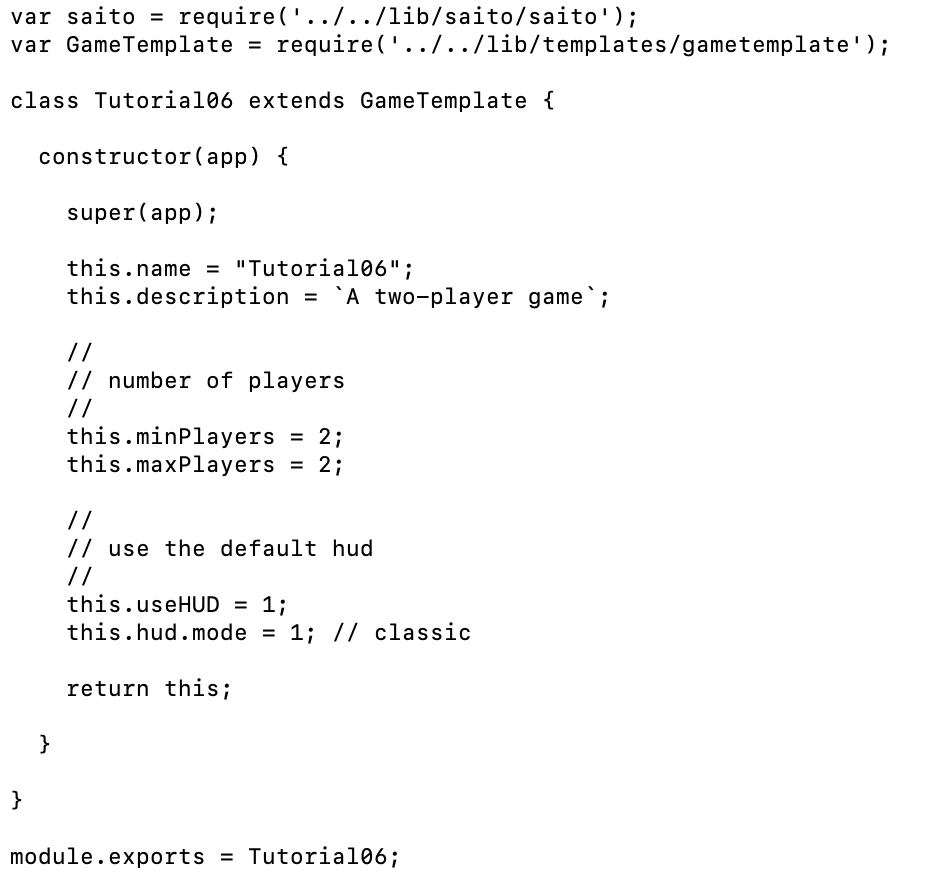
Saito manages game state, and keeps it available within game modules as [this.game]. You can view the GameTemplate parent class to see what is included in this by default, or visit Email > Debug (https://saito.io/email) to explore it as a user. The most commonly-used piece of data in this game object are the array of players [this.game.players], our player number [this.game.player], our array of game moves [this.game.queue] and any decks and cards that have been dealt to you [this.game.deck].
Since most games need a place to put their own data (board state, records of events-in-play, VP tables, etc.) it is traditional for games to include a returnState() function and set the object returned by this function to [this.game.state] in initialization. As soon as data is saved within this object, you can interact with it safely without fear of overwriting it. Saito will make sure any data attached to this object is kept in sync with the other players in the game. If you need to save player-specific data, a good place to put it would be [this.game.state.players].
Our tutorial application is a modified version of Tic-Tac-Toe, where the cards that are dealt to users control where they can place their pieces on the board. The first step is creating our gameboard. Do this by adding a “gameboard” element to our HTML file and using CSS to display a JPG image as its background image. Anything that needs to be positioned visually on the board can be positioned within this element (we have added slots for the Xs and Os). Although this seems to be a web-application, non-browser Saito clients can load all of this content locally without the need for an external server to feed them content.
What about the game logic? Whenever a game is created or loaded initializeGame() is run first. In our tutorial code, this function checks to see if we are a new game (does a deck exist?) and if not it copies over our initial game state and then adds instructions to [this.game.queue] that will add a deck to our game, shuffle it, and then deal three cards from it to each of our two players. These instructions (DECK / DECKXOR / DECKENCRYPT / etc.) will be executed by the underlying game engine. The only thing our game module needs to worry about is defining our deck as an associative array where the index-field is the name of the card that will be dealt and the content is a JSON object with the data we need. Once initializeGame() has run Saito will call initializeHTML() and attachEventsToBoard() if the user is looking at the gameboard. From a design perspective, note that initializeGame() will run EVEN IF THE PLAYER IS NOT VIEWING THE GAME. If you are going to be adding content to it that manipulates the DOM, be sure to wrap it in a try / catch block in case the user is using another application at time of initialization, such as viewing the Arcade and waiting until “READY” is executed before showing the link to click into the game itself.
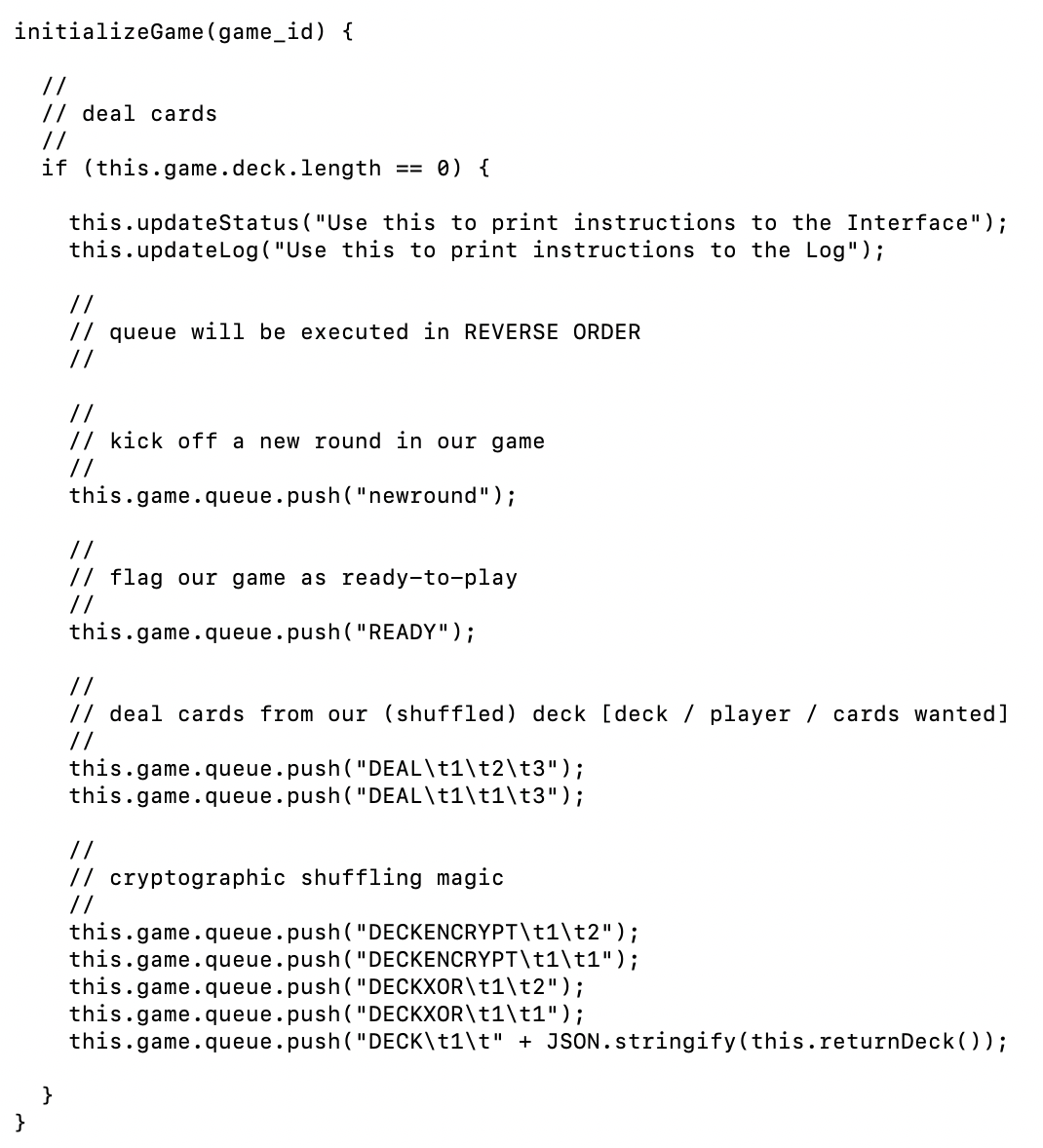
Compile our module at this point and you will be able to create a game using the Saito Arcade. The game will hit initializeGame() and then start executing its queue. It will deal three cards to each player, but when players click through to view the boardgame and play it nothing will happen, because our game isn’t doing anything and the “newround” command doesn’t do anything. We can fix that by providing a function that loops through the game queue and executes instructions specific to our game. This function should be called handleGameLoop():
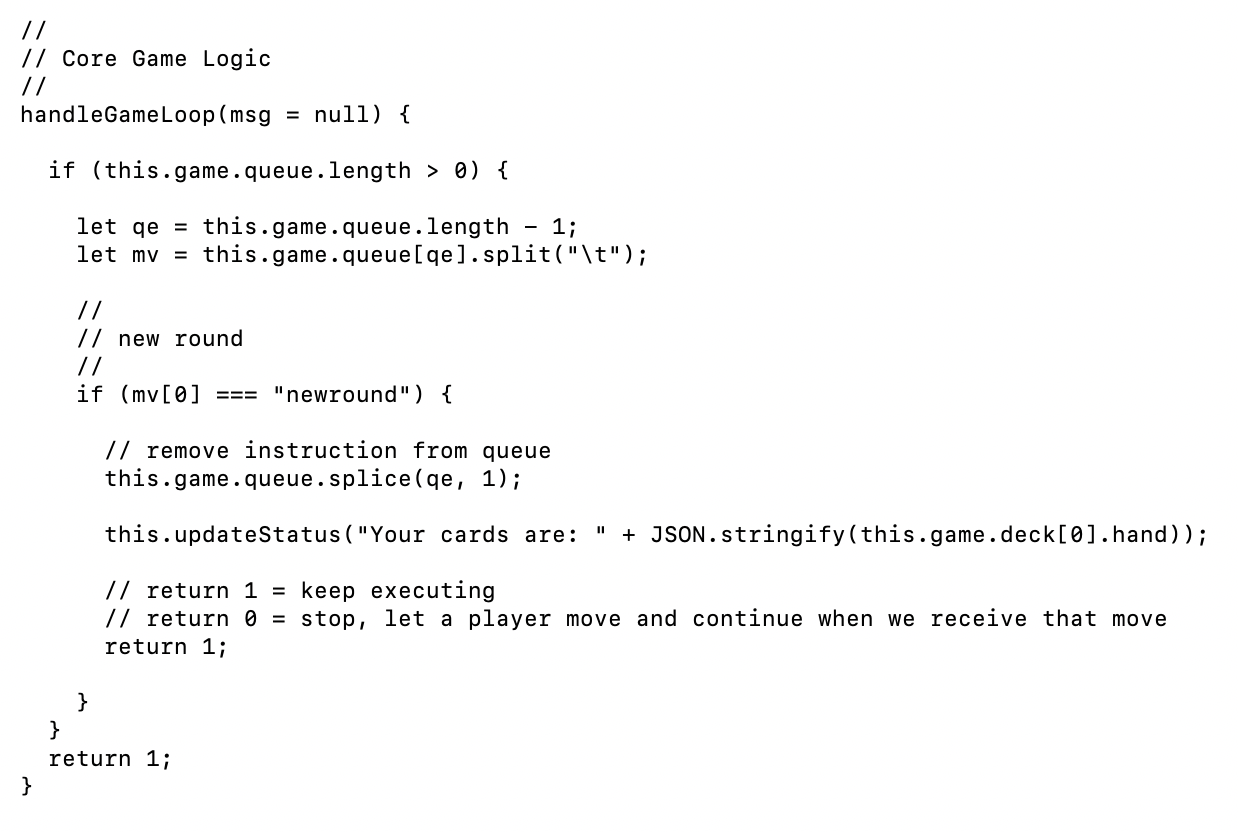
The version of this function included in the final tutorial is fleshed out a bit, but the version above should make it clear what is happening. [this.game.queue] has its instructions processed one-by-one. Games work by adding content to the queue and then removing them and updating the state. The important thing to note is the return value. If this function returns 1 then the game engine will continue to process the next move. If the function returns 0 it will wait for the next move to arrive over the network (from another player, or possibly broadcast by its own player).
Given this, an easy way to structure a game is to have “newround” NOT remove itself, but simply add player moves to the queue every time it is reached in an endless loop. Players will take turns executing moves, with the game pausing for each player to move in turn. In order to have a semblance of a two-player game in our tutorial, this is what we have done with the demo code. We have also added a playerTurn() function that is called player-by-player and that allows them to select a card from their hand. This function just shows them the cards they have in their hand and broadcasts their move once they have selected the function. The remainder of the application should be self-explanatory: it just adds a move to a network transaction and broadcasts it, at which point all players receive it and the game state is updated.
As usual, if you would like to look at the full code for this application, please download the code. With that said, if you’re a developer or game publisher interested in getting a game running on Saito please contact us — there are a lot of more complicated features (secure dice rolls, flipping cards onto the table, etc.) that require more in-depth knowledge of the game engine. Some of these are still under development. We’re happy to help get things running: just contact us.